

How to Get LEGO Friends to Run on Windows 11: A Step-by-Step Guide
Trying to play an older LEGO Friends game on a Windows 11 computer can be frustrating. You might have the original disc, an old installer, or a digital version, but the game may refuse to install, fail to launch, or close unexpectedly. The right solution depends on which LEGO Friends release you have.
If you are wondering how to get lego friends to run on windows 11, start by identifying the exact game. The original 1999 Windows PC release has different compatibility issues from LEGO Friends: Heartlake Rush, which has a separate PC route through Google Play Games. This guide explains how to identify your version, choose a safe installation method, and troubleshoot common problems without downloading suspicious files or changing unnecessary Windows settings.
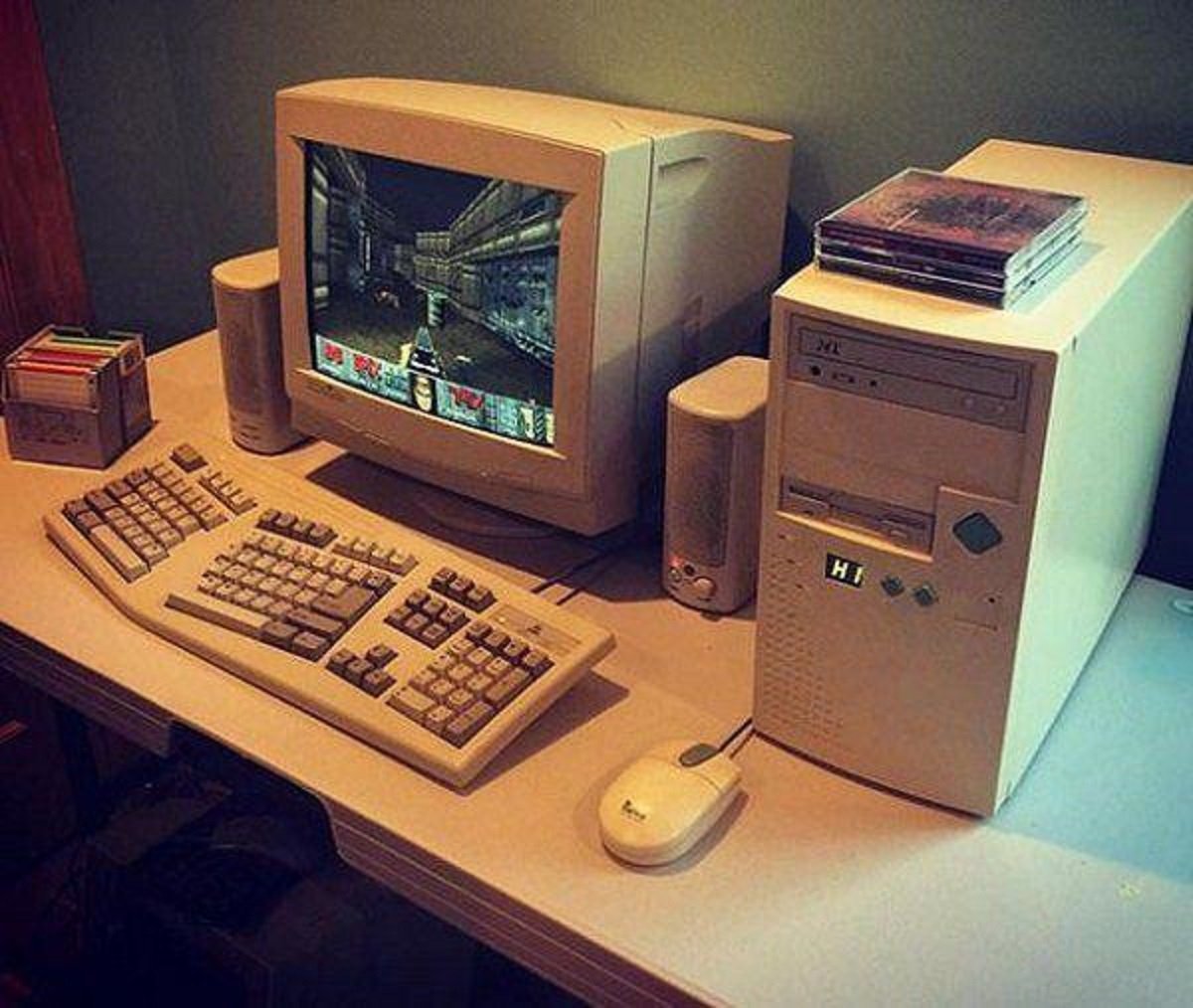
Older games are one example of how different types of technology evolve as computer systems change.
Can You Play LEGO Friends on Windows 11?
Yes, some LEGO Friends releases have a route to Windows PCs, but there is no single fix that works for every version.
The original LEGO Friends PC game was released for Windows in 1999. It is an older game, and its installer and copy-protection technology can cause problems on modern 64-bit Windows systems. By contrast, LEGO Friends: Heartlake Rush is a different game. Its Google Play listing identifies a Windows PC option powered by Intel technology through Google Play Games.
Before trying a compatibility fix, check the title on your original disc, packaging, purchase record, or game launcher. Do not assume that a guide for one LEGO Friends release will work for another.
Which LEGO Friends Version Do You Have?
This is the most important step because the installation method depends on the game you own.
1. The original LEGO Friends PC game (1999)
The original Windows game was released in 1999. PCGamingWiki lists it as a 32-bit game, but its original installer uses older 16-bit components. It also documents a SafeDisc copy-protection issue with the original retail release on modern Windows versions.
This creates two separate compatibility questions:
- Can Windows 11 run the installer?
- Can the installed game start with its original copy-protection system?
Solving the installer problem does not automatically solve the second problem.
2. LEGO Friends: Heartlake Rush
LEGO Friends: Heartlake Rush is a separate mobile-style game. Its Google Play listing identifies a Windows PC option through Google Play Games. This is not the same as installing the 1999 disc version.
If this is the game you want, check its current listing and Google Play Games availability for your region, account, and PC before installing anything.
3. Another LEGO Friends release
If your game has a different title, publisher, platform, or release date, look up that exact version. A console release, mobile app, and classic Windows game may require completely different software.
How to Get LEGO Friends to Run on Windows 11
Follow the steps below in order. Start with the simplest checks before trying advanced compatibility methods.
Step 1: Check Your Windows 11 System Type
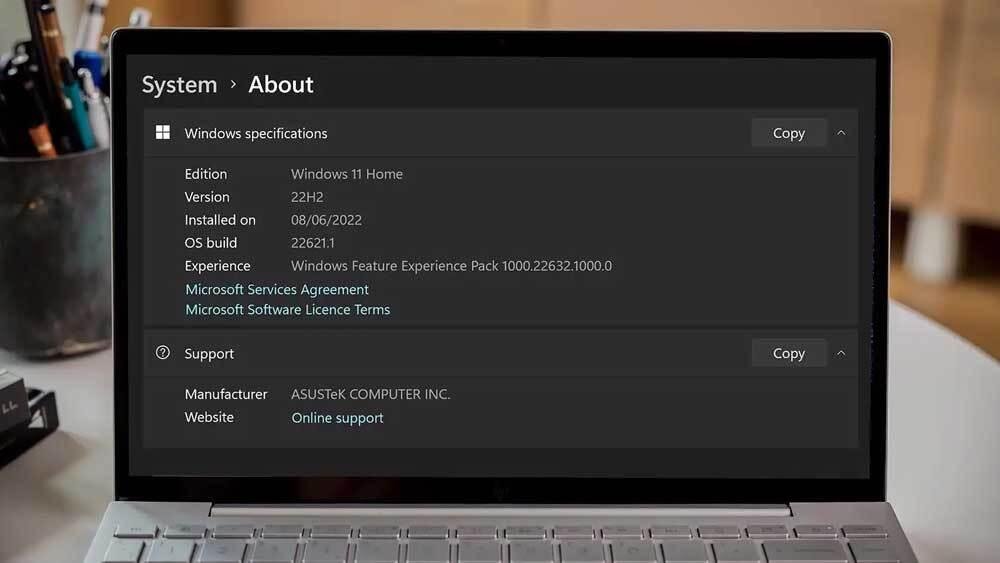
First, find out whether your computer is running a 64-bit or ARM-based version of Windows.
- Open Settings.
- Select System.
- Scroll down and open About.
- Find System type under Device specifications.
- Note whether your system is 64-bit or ARM-based.
This information matters because older games may rely on components that are not supported by every Windows architecture.
A 32-bit Windows application can often run on 64-bit Windows through the built-in WOW64 compatibility subsystem. However, 64-bit Windows does not natively run 16-bit Windows applications. That distinction is especially important for older game installers.
Step 2: Check the Original Game Files
If you own the original LEGO Friends disc, inspect its contents before running the installer.
- Insert the disc into your computer, if you have a working disc drive.
- Open File Explorer.
- Select the disc drive.
- Look for the setup application and any installation folders.
- Check the game’s documentation or a trusted compatibility reference for the exact release.
Do not download a replacement installer from an unknown website. A file that uses the LEGO Friends name is not automatically official or safe.
If Windows reports that the setup program is incompatible, record the exact message. It may be an installer architecture issue rather than a problem with your computer’s performance.
Step 3: Try Windows Program Compatibility Troubleshooter
For a traditional Windows executable, Microsoft’s Program Compatibility Troubleshooter is a reasonable first test.
- Open Settings.
- Select System.
- Choose Troubleshoot.
- Open Other troubleshooters.
- Find Program Compatibility Troubleshooter.
- Select Run and follow the instructions.
- Test the game using the recommended settings.
You can also right-click a game’s executable, open Properties, and check the Compatibility tab. Use only the options available for that file.
Change one setting at a time and test the result. Compatibility mode can help with some older applications, but it cannot convert a console or mobile game into a native Windows game, replace unsupported copy protection, or make a 16-bit program run natively on 64-bit Windows.
Step 4: Understand the 16-Bit Installer Problem
The original LEGO Friends PC release has a specific technical complication: its installer uses older 16-bit components, even though the game itself is 32-bit.
Modern 64-bit Windows can run many 32-bit programs, but it does not provide native support for 16-bit Windows applications. That is why an old setup program may fail even when the game files themselves are 32-bit.
A compatibility layer such as WineVDM (also known as OTVDM) is designed to run certain older 16-bit Windows applications on 64-bit Windows. However, it is not a universal game fix. It may help with an installer-related issue, but it does not guarantee that the original game will launch or that its copy-protection system will work.
Only obtain compatibility software from its genuine project source. Back up your game files before testing it, and do not replace unknown system files.
Step 5: Check for Legacy Copy-Protection Issues
If the original game installs but refuses to start, the problem may not be the installer.
PCGamingWiki notes that the original LEGO Friends retail release uses SafeDisc copy protection and that this protection does not work on Windows Vista and later. Windows 11 is therefore affected by the same legacy limitation.
This is important because changing compatibility settings, adding more RAM, or updating a graphics driver will not repair unsupported copy-protection technology.
Use a legitimate release that does not depend on unsupported protection, if one is available from an authorized source. Do not use unofficial cracks, modified executables, or files advertised as copy-protection bypasses.
Step 6: Check DirectX and Graphics Information
If your particular game version installs and starts but displays a blank screen, visual glitches, or a graphics error, check your system information.
- Press Windows + R.
- Type dxdiag.
- Press Enter.
- Review the System tab for DirectX information.
- Open the Display tab to review your graphics device and driver details.
Keep Windows and your graphics drivers updated through Windows Update or your PC or graphics-card manufacturer’s official support page.
An older game may depend on legacy graphics features that are not fully addressed by simply installing the newest DirectX version. Install additional legacy components only when the game’s documentation or a specific error message calls for them. Download runtime packages from Microsoft, not third-party DLL websites.
Understanding how software interacts with hardware can also help explain why an older game may behave differently on a modern computer.
How to Fix Common LEGO Friends Problems on Windows 11
Different errors point to different causes. Use this table to identify the next sensible step.
| Problem | Possible reason | What to try |
| Installer will not open | 16-bit installer component | Identify the installer architecture and check a trusted compatibility guide |
| “This app can’t run on your PC” | Unsupported executable or architecture | Confirm the game version and Windows system type |
| Game installs but does not launch | Legacy copy protection or runtime issue | Check the exact release and its documented compatibility limitations |
| Black screen or graphics glitches | Old graphics features or driver issue | Check dxdiag and update the official graphics driver |
| Game crashes immediately | Compatibility or application error | Record the error and test one supported compatibility setting at a time |
| Windows Security blocks a file | The file may be unsafe or untrusted | Verify its source and inspect the security alert before taking action |
| Game runs slowly | Resource or graphics limitation | Close unnecessary apps and check the game’s actual requirements |
What Should You Do If the Game Shows an Error?
Do not try every fix at once. First, record the exact error message and identify whether the failure happens during installation, when launching the game, or during gameplay.
That simple distinction can save time. An installer error may involve 16-bit components, while a launch error on the original retail version may involve SafeDisc. A graphics problem requires a different investigation.
Is WineVDM Safe to Use for LEGO Friends?
WineVDM is an open-source compatibility project intended to run certain 16-bit Windows applications on 64-bit Windows. It can be useful when an old installer depends on a 16-bit component.
However, there are important limits:
- It does not make every old Windows game compatible.
- It does not guarantee that LEGO Friends will install or run correctly.
- It does not repair unsupported SafeDisc copy protection.
- It should be downloaded only from the project’s genuine source.
- You should back up important files before testing compatibility software.
Treat it as a possible installer workaround, not a guaranteed solution for the entire game.
Can You Run LEGO Friends: Heartlake Rush on Windows 11?
LEGO Friends: Heartlake Rush is different from the 1999 PC game. Its Google Play listing identifies a Windows PC option powered by Intel technology through Google Play Games.
To check whether this route is available:
- Visit the official Google Play listing for LEGO Friends: Heartlake Rush.
- Review the current Windows PC availability information.
- Check Google Play Games for PC requirements.
- Confirm that your computer meets the platform’s current requirements.
- Install the game only through the official supported route if it is available to you.
Availability can vary by region, account, device, and platform requirements. Do not use an unofficial Windows installer for a mobile release just because it has the same LEGO Friends name.
What Should You Avoid When Fixing LEGO Friends?
Some online fixes can create more problems than they solve. Avoid these common mistakes:
- Do not download random DLL files. Missing-component errors should be investigated using official software sources.
- Do not disable antivirus protection. A security warning needs to be checked, not ignored.
- Do not run every file as administrator. Elevated permissions should be used only when a trusted application genuinely requires them.
- Do not install multiple compatibility tools at once. Test one change at a time so you can identify what helped.
- Do not assume every LEGO Friends release is a Windows game. Confirm the exact product and supported platform first.
- Do not expect compatibility mode to fix copy protection. It cannot restore a discontinued or unsupported DRM system.
A Simple Checklist Before You Start Playing
Use this checklist before troubleshooting further:
- Identify the exact LEGO Friends game and release.
- Confirm whether it is the original 1999 PC game or Heartlake Rush.
- Check whether your Windows 11 installation is 64-bit or ARM-based.
- Use a legitimate copy and inspect the original installation files.
- Record the exact error message.
- Try Microsoft’s compatibility troubleshooter for a traditional Windows application.
- Check for installer architecture and copy-protection limitations.
- Use official sources for drivers, runtimes, and compatibility software.
- Avoid unofficial cracks, unknown installers, and random DLL downloads.
Frequently Asked Questions
How do I get LEGO Friends to run on Windows 11?
First identify which LEGO Friends release you own. The original 1999 Windows game has legacy installer and SafeDisc limitations, while Heartlake Rush has a separate Google Play Games PC route. Follow the instructions for your exact version rather than applying one universal fix.
Does the original LEGO Friends game work on Windows 11?
The original game has compatibility limitations. Its installer uses older 16-bit components, and PCGamingWiki documents that the original SafeDisc protection does not work on modern Windows versions. Installing the game does not guarantee that it will launch.
Why won’t my LEGO Friends installer open on Windows 11?
One possible reason is that the original installer uses 16-bit components. 64-bit Windows can run many 32-bit applications, but it does not natively support 16-bit Windows programs. Check the exact installer and release before choosing a workaround.
Can compatibility mode make LEGO Friends work?
It may help with some older Windows applications, but it is not a universal solution. Compatibility mode cannot fix unsupported copy protection, turn a mobile or console game into a native Windows application, or provide missing 16-bit support on 64-bit Windows.
What is WineVDM, and can it help with LEGO Friends?
WineVDM is a compatibility layer for certain 16-bit Windows applications on 64-bit Windows. It may help with an older installer, but it does not guarantee that the game itself will run or resolve SafeDisc limitations.
Is LEGO Friends: Heartlake Rush the same as the original PC game?
No. Heartlake Rush is a separate release with a different platform and installation route. Its Google Play listing identifies a Windows PC option through Google Play Games, while the 1999 game is an older Windows PC release.
Should I download a modified LEGO Friends EXE file?
No. Avoid unofficial modified executables, cracks, and files from unknown websites. They can contain malware or create security and stability problems. Use a legitimate game copy and trusted project or publisher sources.
What should I do if LEGO Friends opens but shows a black screen?
First confirm that your game version is supported and that the failure is not caused by legacy copy protection. If the game is able to launch, check the graphics information using dxdiag, update your official graphics driver, and consult a compatibility reference for that exact release.
Final Thoughts
Getting an older LEGO Friends game to run on Windows 11 is not always as simple as changing a compatibility setting. The original 1999 PC release has a 16-bit installer issue and a separate SafeDisc limitation, while Heartlake Rush uses a different PC installation route.
The safest approach is to identify the exact version, understand its technical requirements, and use trusted software sources. If the original release depends on unsupported copy protection, no ordinary Windows setting can guarantee a working result.
By diagnosing the problem before changing system settings, you can avoid risky downloads and spend less time testing fixes that cannot solve the actual issue.