

What Do Hard Disks Do? A Simple Guide to HDD Storage
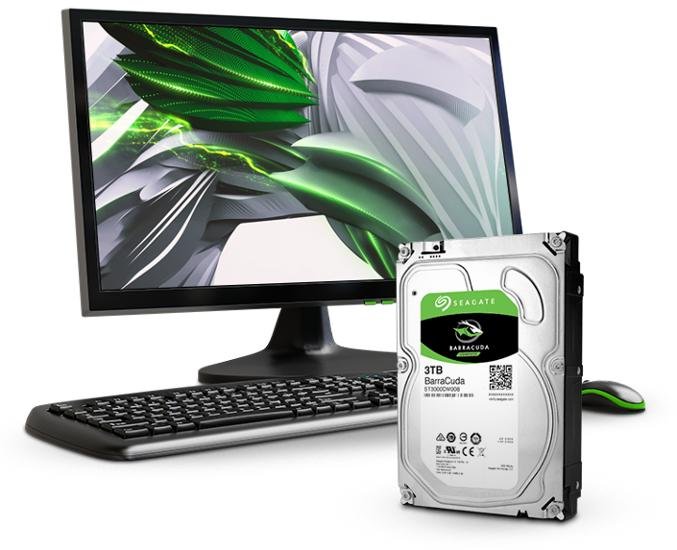
A computer needs a place to keep its operating system, applications, documents, photos, videos, and other files. That is where a storage device comes in. What do hard disks do? They store digital information and allow a computer to retrieve it whenever it is needed. A traditional hard disk drive (HDD) keeps data on magnetic disks, even when the computer is switched off.
Hard disks are used in desktop computers, laptops, external storage devices, and some business systems. Although solid-state drives (SSDs) are now common, HDDs remain useful when people need large storage capacity at a relatively affordable cost.
To understand how storage interacts with programs and the operating system, read our guide to how software works.
What Do Hard Disks Do in a Computer?
A hard disk drive stores and retrieves digital information. It provides long-term storage for files and programs, so the information remains available after you shut down your computer.
A hard disk can store:
- The operating system, such as Windows or Linux
- Installed applications and software
- Documents, spreadsheets, and presentations
- Photos, videos, and music
- Downloads and personal files
- System files and other data
For example, when you save a photograph, the computer writes that information to a storage device. When you open the photograph later, the computer reads the stored data and displays the image on your screen.
In simple terms, a hard disk acts like a digital filing cabinet. It keeps information organized so the computer can find and use it when required.
It is worth remembering that not every computer uses a traditional HDD. Many modern devices use an SSD for the same general storage purpose.
How Does a Hard Disk Drive Work?
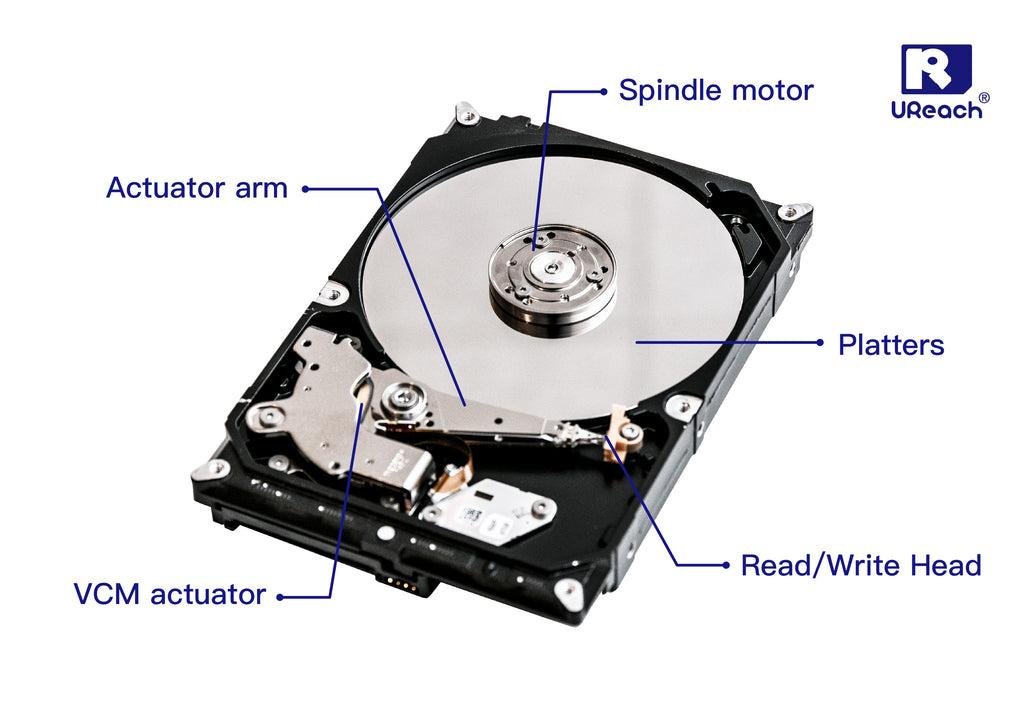
A traditional HDD uses magnetic storage and mechanical components to read and write information. Inside the drive, circular platters spin while read/write heads access specific areas of their surfaces.
Here is the basic process:
- The computer requests data: You open a document, start an application, or save a file.
- The drive locates the information: The HDD’s controller coordinates the operation and positions the read/write heads.
- The platters rotate: The spinning disks bring the required data area into position.
- The heads read or write data: The drive reads magnetic information or records new information on the platter.
- The data moves to or from the computer: The computer uses the retrieved information or confirms that the data has been saved.
This process happens repeatedly whenever a computer accesses information stored on the HDD.
Because traditional hard drives contain moving parts, their access speed can be affected by mechanical movement. SSDs use flash memory instead, so they can access data without spinning platters or moving read/write heads.
What Are the Main Parts of a Hard Disk?
A traditional hard disk contains several components that work together to store and retrieve information.
1. Magnetic Platters
Platters are circular disks inside an HDD. Their surfaces contain magnetic material where digital information is recorded. A drive may contain one or more platters, depending on its design and capacity.
2. Read/Write Heads
Read/write heads access information on the platter surfaces. They read recorded magnetic patterns and write new data when the computer saves information.
3. Actuator Arm
The actuator arm moves the read/write heads to the required position over the platters. Accurate positioning allows the drive to access different areas of stored information.
4. Spindle Motor
The spindle motor rotates the platters at a controlled speed. This movement allows the read/write heads to access different locations on the disk.
5. Controller Board
The controller manages the drive’s operations and communication with the computer. It coordinates commands, data transfers, and other internal functions.
What Is the Difference Between an HDD and an SSD?
HDDs and SSDs both provide long-term data storage, but they use different technologies.
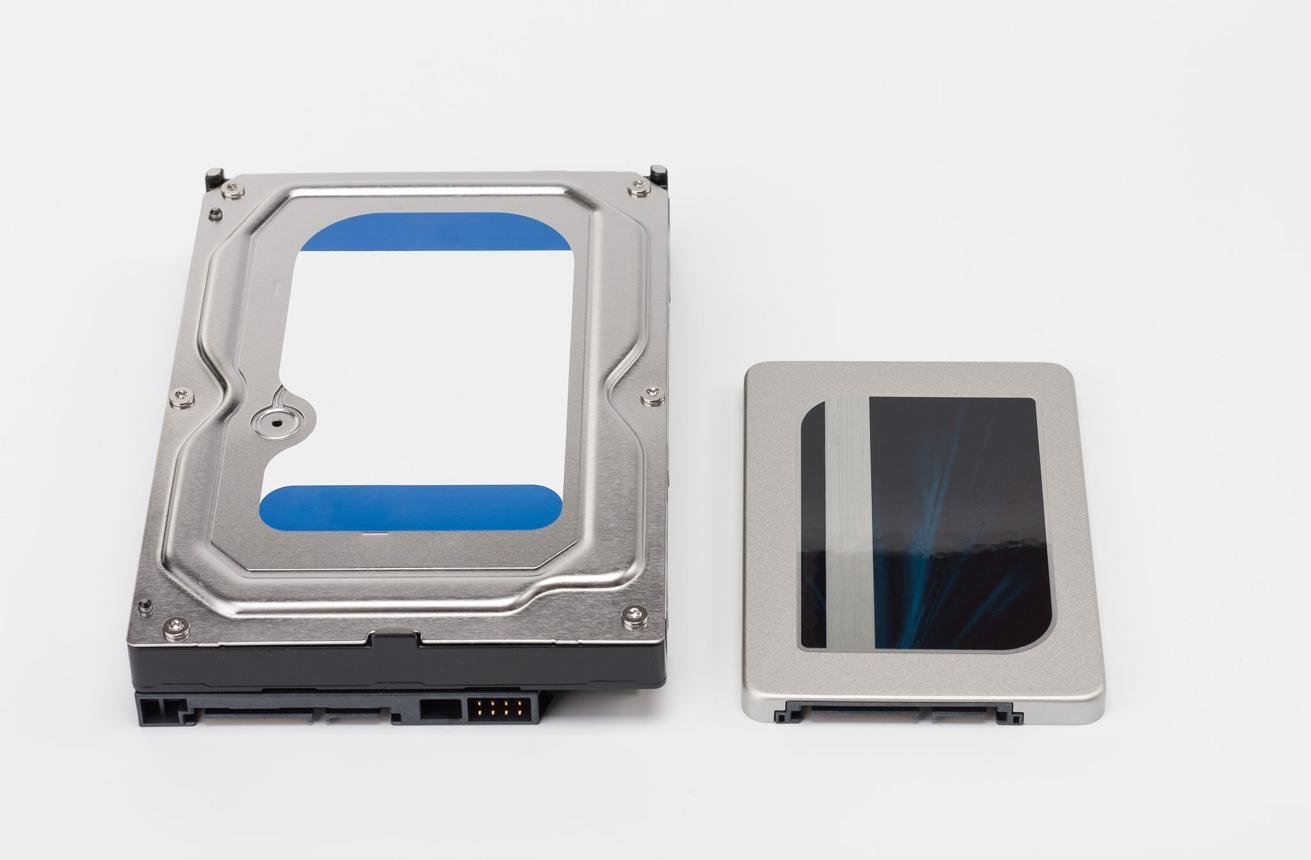
An HDD stores data magnetically on rotating platters. An SSD stores data electronically in flash memory chips and has no moving mechanical parts.
| Feature | HDD (Hard Disk Drive) | SSD (Solid-State Drive) |
| Storage technology | Magnetic platters | Flash memory |
| Moving parts | Yes | No |
| Data access | Mechanical movement is involved | Electronic access |
| Typical performance | Generally slower | Generally faster |
| Cost per GB | Often lower | Often higher |
| Noise | May produce mechanical noise | Silent operation |
| Physical shock | More sensitive to impact while operating | No moving parts, but still needs careful handling |
| Common use | Large file storage and backups | Operating systems, apps, and fast everyday computing |
Neither option is automatically best for every user. The right choice depends on your budget, storage requirements, workload, and performance expectations.
When Should You Choose an HDD?
An HDD may be a practical choice when you:
- Need a large amount of storage for photos, videos, or documents.
- Want an affordable way to store less frequently accessed files.
- Need additional space for backups or archives.
- Work with large collections of media files and do not require the fastest access speed.
When Should You Choose an SSD?
An SSD may be a better choice when you:
- Want faster computer startup times.
- Open applications and files frequently.
- Work with demanding software or games.
- Prefer silent storage without moving mechanical parts.
- Need a responsive everyday computing experience.
Some computers use both: an SSD for the operating system and frequently used applications, and an HDD for larger files and archives.
Why Are Hard Disks Important?
Hard disks and other storage devices are important because computers need a place to keep information beyond temporary memory.
Their main functions include:
- Keeping files available: Documents, photos, and other files remain stored after the computer is turned off.
- Storing the operating system: A computer commonly loads its operating system from an internal storage device.
- Holding applications: Installed programs and their supporting files need storage space.
- Supporting backups: HDDs can provide additional space for copies of important information.
- Managing large data collections: They are useful for storing large media libraries and archived files.
A hard disk is not the same as RAM. RAM temporarily holds information that the processor is actively using, while an HDD or SSD keeps data for long-term use.
Can a Computer Work Without a Hard Disk?
Yes. A computer can work without a traditional HDD if it has another suitable storage solution.
For example, many modern laptops use an SSD instead of a hard disk drive. Some specialized systems can also start from network storage or other supported bootable devices.
The important requirement is access to a suitable environment from which the computer can run its operating system and applications. A traditional HDD is common, but it is not the only way to provide storage.
What Are the Common Signs of a Failing Hard Drive?
A hard drive can develop mechanical, electronic, or data-related problems. Recognizing warning signs early may give you time to protect important information.
Watch for these symptoms:
| Warning sign | What it may indicate | What you should do |
| Repeated clicking or grinding | Possible mechanical trouble | Stop unnecessary use and seek professional advice |
| Files disappear or become unreadable | File-system or drive problems | Back up accessible files and investigate the drive |
| Computer freezes during file access | Storage or system issue | Check drive health and review system errors |
| Very slow file transfers | Drive, connection, or system performance issue | Check available space, connections, and drive health |
| Drive disappears from the computer | Connection, power, or drive failure | Check cables and ports; seek help if it continues |
| Repeated read/write errors | Possible media or file-system problems | Protect important data and diagnose the drive |
Important: These symptoms do not always prove that an HDD is failing. A loose cable, faulty USB port, software problem, or other hardware issue can cause similar behavior.
If a drive makes unusual mechanical noises or contains important files that are not backed up, avoid repeatedly restarting or testing it. Continued operation may make some physical failures worse. Consider professional data-recovery assistance when the information is valuable.
How Can You Protect Data Stored on a Hard Disk?
A hard disk can store information for years, but no storage device should be treated as a guaranteed permanent backup.
Use these habits to reduce the risk of losing important files:
- Keep another copy of important files. Use a separate external drive or a reputable cloud backup service.
- Follow a backup schedule. Back up files regularly instead of waiting until a problem appears.
- Handle external HDDs carefully. Avoid dropping, shaking, or disconnecting a drive while it is transferring data.
- Keep the computer properly ventilated. Follow the manufacturer’s operating and temperature recommendations.
- Check drive warnings. Take unusual noises, repeated errors, or health alerts seriously.
- Use safe removal for external drives. Eject the drive through the operating system before disconnecting it when required.
For Windows users, Microsoft’s guide to storage-device critical warnings explains what certain drive-health alerts mean and why backing up data matters.
How Do You Check Hard Drive Storage and Health?
You can check how much storage space is available through your computer’s operating system. This helps you understand whether the drive is nearly full or has enough space for new files.
On Windows 11 or Windows 10:
- Open Settings.
- Select System.
- Choose Storage to review how space is being used.
- Open Advanced storage settings and then Disks & volumes to view connected drives and their properties.
Microsoft also explains how to use Storage settings in Windows.
Remember that available space and drive health are different things. A drive can have plenty of free space and still have a hardware problem. Similarly, a nearly full drive is not necessarily failing; it may simply need file cleanup or additional storage.
How Much Storage Capacity Do You Need?
The right capacity depends on what you plan to store.
| Typical use | Storage considerations |
| Documents and everyday files | A smaller drive may be sufficient |
| Photos and music collections | More capacity helps as the collection grows |
| Large video files | Higher capacity is often useful |
| Gaming and creative work | Consider both capacity and speed |
| Computer backups | Choose capacity based on the amount of data you need to protect |
Before buying a drive, check your computer’s supported drive type, physical size, interface, and available connection. A drive that does not match your device may not be compatible.
Frequently Asked Questions About Hard Disks
What do hard disks do in simple terms?
Hard disks store and retrieve digital information, including operating systems, applications, documents, photos, and videos. They keep this information available even when the computer is switched off.
What is the main purpose of an HDD?
The main purpose of an HDD is to provide long-term data storage. It allows a computer to save files and retrieve them when applications or users need them.
Does a hard disk store data permanently?
An HDD is non-volatile storage, meaning it retains stored information when power is switched off. However, no drive is guaranteed to preserve data forever. Hardware failure, damage, or other problems can cause data loss.
What is the difference between a hard disk and a hard drive?
People often use these terms interchangeably. Technically, a hard disk refers to the magnetic disk or platters inside a traditional HDD, while a hard disk drive includes the platters, heads, motor, controller, and other components.
Is an SSD a hard disk?
No. An SSD is a solid-state drive, not a traditional hard disk. Both are storage devices, but an SSD uses flash memory rather than spinning magnetic platters.
Is HDD better than SSD?
Neither is better for every situation. HDDs are often useful for affordable, high-capacity storage, while SSDs are generally faster and have no moving parts. Your choice should depend on your storage needs and budget.
Can a laptop work without an HDD?
Yes. A laptop can use an SSD instead of an HDD. It needs a suitable storage or boot solution, but it does not specifically require a traditional hard disk.
Why is my hard drive making clicking noises?
Repeated clicking can indicate a mechanical problem, although not every sound means the drive is failing. If the drive contains important data, avoid unnecessary use and consider professional assessment.
How long does a hard drive last?
There is no guaranteed lifespan for every HDD. Usage, operating conditions, manufacturing quality, and individual drive health all affect how long it remains usable. Keep backups rather than relying on an estimated lifespan.
Can I use an external hard drive for backups?
Yes. An external HDD can store backup copies of documents, photos, videos, and other files. Keep it safely stored and disconnected when not in use, where practical. For important data, maintain another separate backup copy as well.
Final Thoughts
Hard disks provide a practical way to store and retrieve the information computers use every day. They keep operating systems, applications, documents, photos, videos, and other files available even after a device is switched off.
Traditional HDDs use magnetic platters and moving read/write components, while SSDs use flash memory to provide storage without mechanical movement. Understanding the difference helps you choose a device that fits your needs, whether you prioritize storage capacity, speed, or cost.
Most importantly, protect your files with regular backups. A storage device can fail unexpectedly, so keeping another copy of important information is one of the simplest ways to avoid losing it.